Meta Quest 3S VR Setup: Stream 8K Videos on xMonter
Meta Quest 3S VR setup guide for xMonter. Configure budget VR settings to stream 8K 60fps videos smoothly on Meta Quest 3S using optimized browser and hardware video decoder configurations in 2026....
In this article
Meta Quest 3S VR setup guide for xMonter. Configure budget VR settings to stream 8K 60fps videos smoothly on Meta Quest 3S using optimized browser and hardware video decoder configurations in 2026.
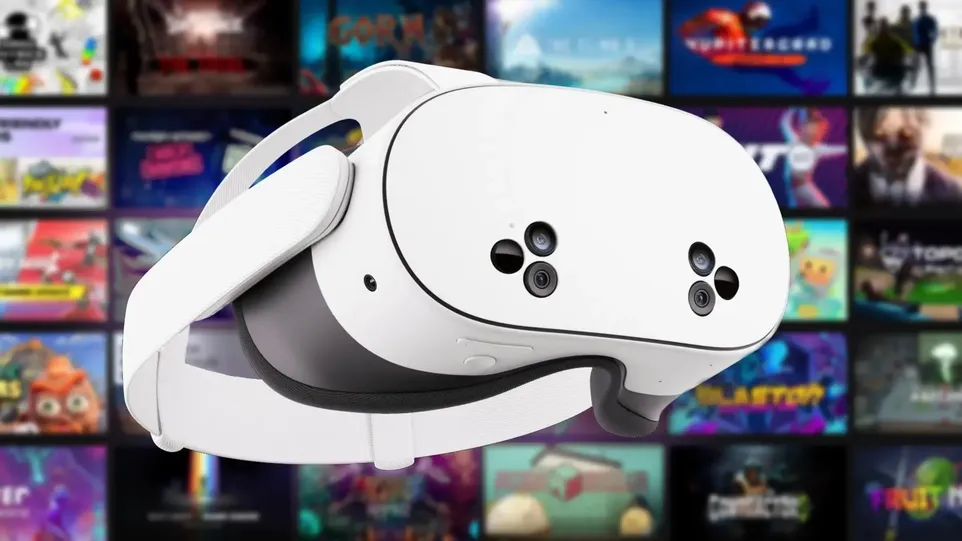
The launch of the budget-friendly Meta Quest 3S has made high-quality virtual reality accessible to millions of new users worldwide. Powered by the same high-performance Qualcomm Snapdragon XR2 Gen 2 processor as the flagship Quest 3, the Quest 3S offers surprising video decoding capabilities. Despite its lower optical price point, the headset can decode full 8K 60fps adult VR streams on xMonter.com with remarkable fluidity.
Below is a comprehensive setup guide tailored specifically for Meta Quest 3S owners looking to maximize video crispness, adjust supersampling, and eliminate buffering during 8K VR viewing sessions.
Meta Quest 3S 8K VR Hardware & Playback Specifications
| Feature Component | Quest 3S Optimized VR Configuration |
|---|---|
| Display Panels | Fresnel Lenses (1832x1920 per eye, 90Hz/120Hz refresh) |
| Processor Chipset | Qualcomm Snapdragon XR2 Gen 2 (Native 8K HEVC Hardware Decoding) |
| Browser Optimization | Meta Quest Browser with GPU Rasterization Enabled |
| Recommended VR Players | DeoVR, Skybox VR, Pigasus VR Media Player |
| Wireless Network | Wi-Fi 6 (5GHz Band, minimum 80 Mbps dedicated speed) |
Optimizing Video Crispness & Supersampling on Meta Quest 3S
Because the Quest 3S uses Fresnel lenses, fine-tuning your optical position and software resolution scale makes a dramatic difference when watching 8K VR videos on xMonter.com:
- Adjust Interpupillary Distance (IPD): Use the 3-stage lens slider to align the lenses directly with your eyes to eliminate edge blur.
- Enable WebXR Supersampling: Open Meta Quest Browser, enter VR mode on xMonter, open the player overlay, and set Supersampling to 1.2x to sharpen fine textures.
- Lock Refresh Rate to 90Hz: Locking the refresh rate prevents sudden frame drops during intense 8K 60fps video playback.
Step-by-Step 8K Streaming Guide for Meta Quest 3S
Follow these quick steps to start watching 8K VR videos immediately:
- Connect your Quest 3S to a fast 5GHz Wi-Fi network.
- Launch Meta Quest Browser and visit xMonter.com.
- Select any 8K 180° 3D scene from our library of 48,000+ VR videos.
- Click Enter VR to enter full immersive spatial mode.
Frequently Asked Questions (FAQ) About Quest 3S 8K VR Setup
Can Meta Quest 3S handle 8K video streaming?
Yes. The Quest 3S shares the same XR2 Gen 2 chip as the Quest 3, allowing it to hardware-decode 8K H.265/HEVC video without overheating.
What is the difference between Quest 3 and Quest 3S for watching 8K VR?
Quest 3 offers higher display resolution and pancake optics, while Quest 3S uses Fresnel lenses. However, video decoding performance and 8K playback capability are identical on both headsets.
Do I need a PC to watch 8K VR videos on Quest 3S?
No. You can stream 8K VR videos directly inside the standalone Meta Quest Browser on xMonter.com.